-
1 Pay the bank
Use your registration reference.
-
2 Upload proof
Bank slip or transfer confirmation.
-
3 Organisers review
Your registration shows Pending.
-
4 Registered
Status changes to Paid.
If your proof is rejected, the reason appears on the payment page. Upload a corrected copy and it is reviewed again.
Paying by card or mobile money? You're registered as soon as the payment goes through — there's nothing to upload or review.
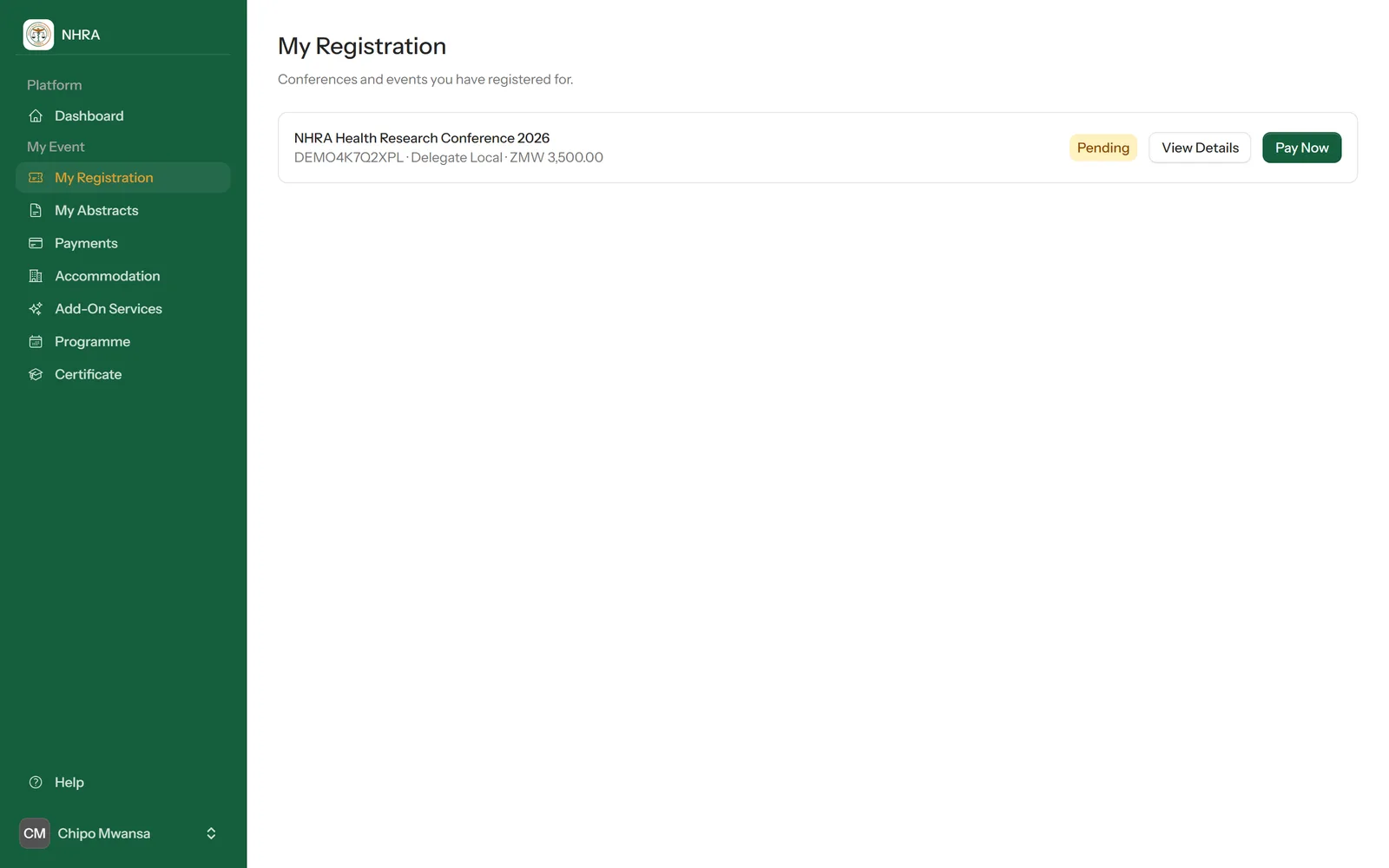
Open your registration
Sign in and select My Registration in the sidebar. Select Pay Now next to the conference, or View Details to see everything about your registration.
 1
2
1
2
Choose how to pay
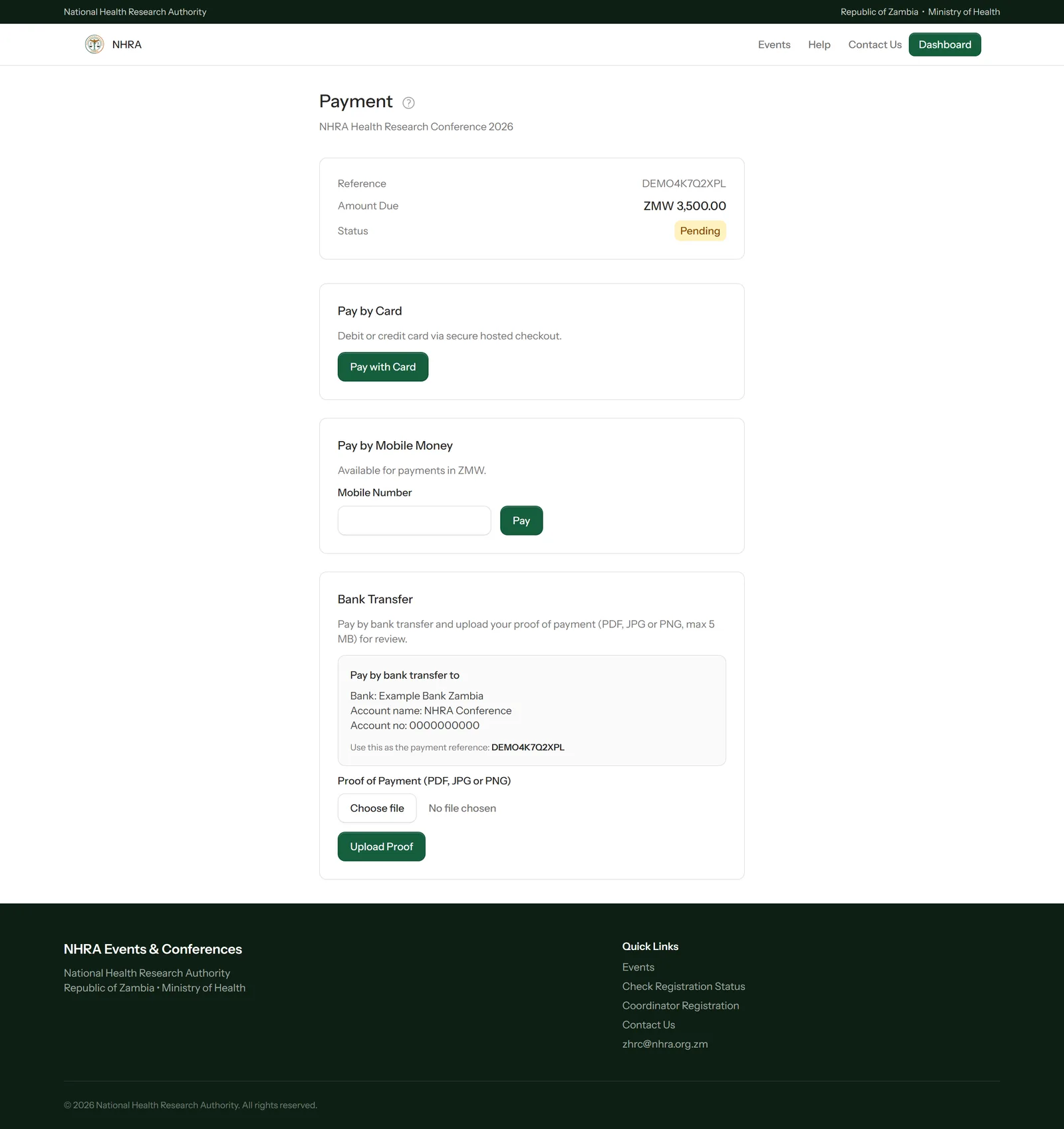
The payment page shows your reference and the amount due. Choose one way to pay:
- Card — select Pay with Card to pay on a secure checkout page. You're registered as soon as the payment goes through.
- Mobile money — for payments in ZMW. Enter your mobile number, select Pay and approve the prompt on your phone.
- Bank transfer — pay into the account shown, using your registration reference as the payment reference, then upload your proof (step 3).
 1
2
3
4
1
2
3
4
Upload your proof of bank payment
Under Bank Transfer, select Choose file, pick your bank slip or transfer confirmation (PDF, JPG or PNG, up to 5 MB) and select Upload Proof.
The organisers review it. If it's rejected, the reason appears on this page — upload a corrected copy the same way.
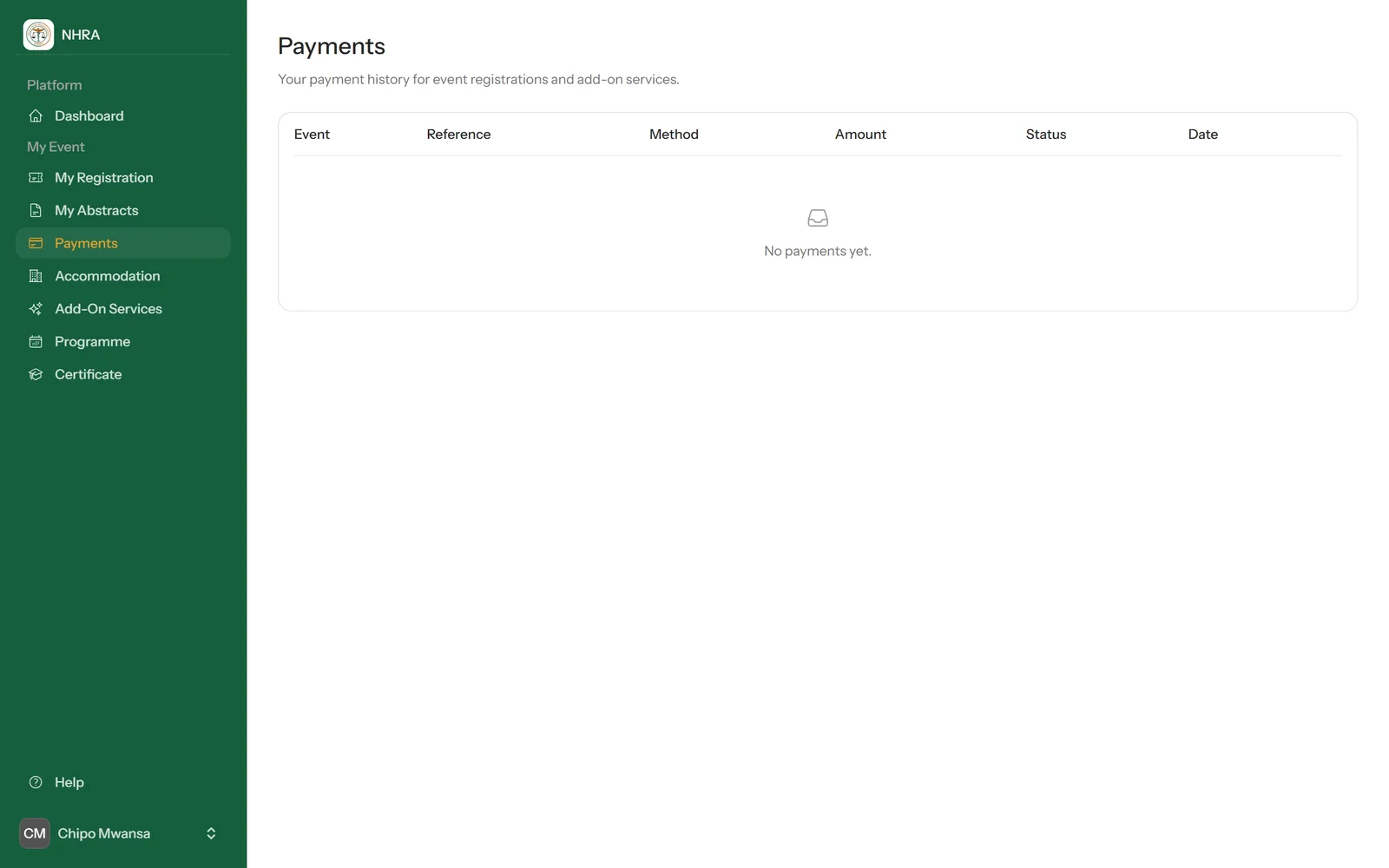
Check your payments and receipts
Payments in the sidebar lists every payment you've made, with its method, amount, status and date. Once a registration is paid you can download its receipt from your registration.