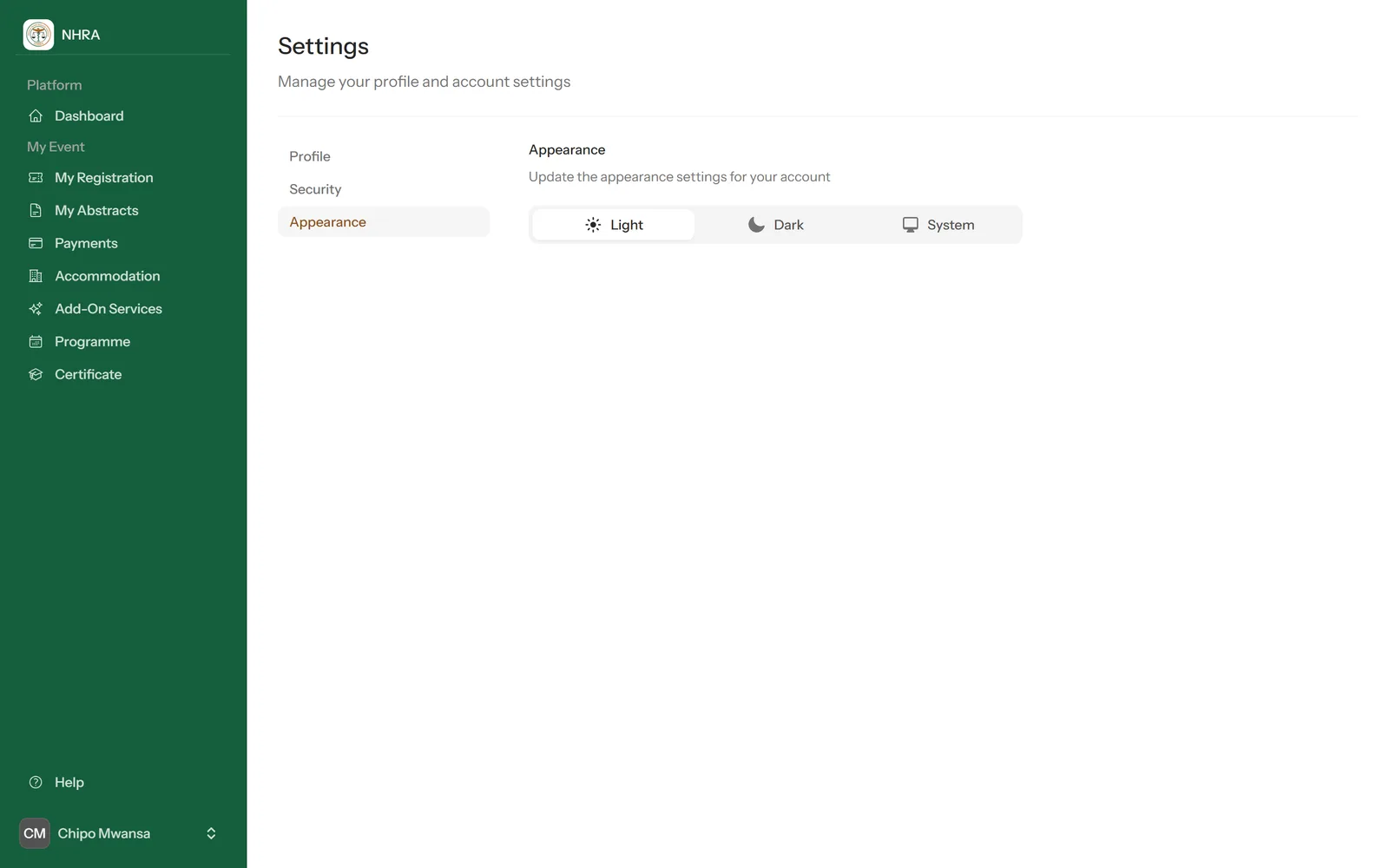
Open your settings from the menu under your name at the bottom of the sidebar (on a phone, the circle with your initials at the top), then choose Profile.
1
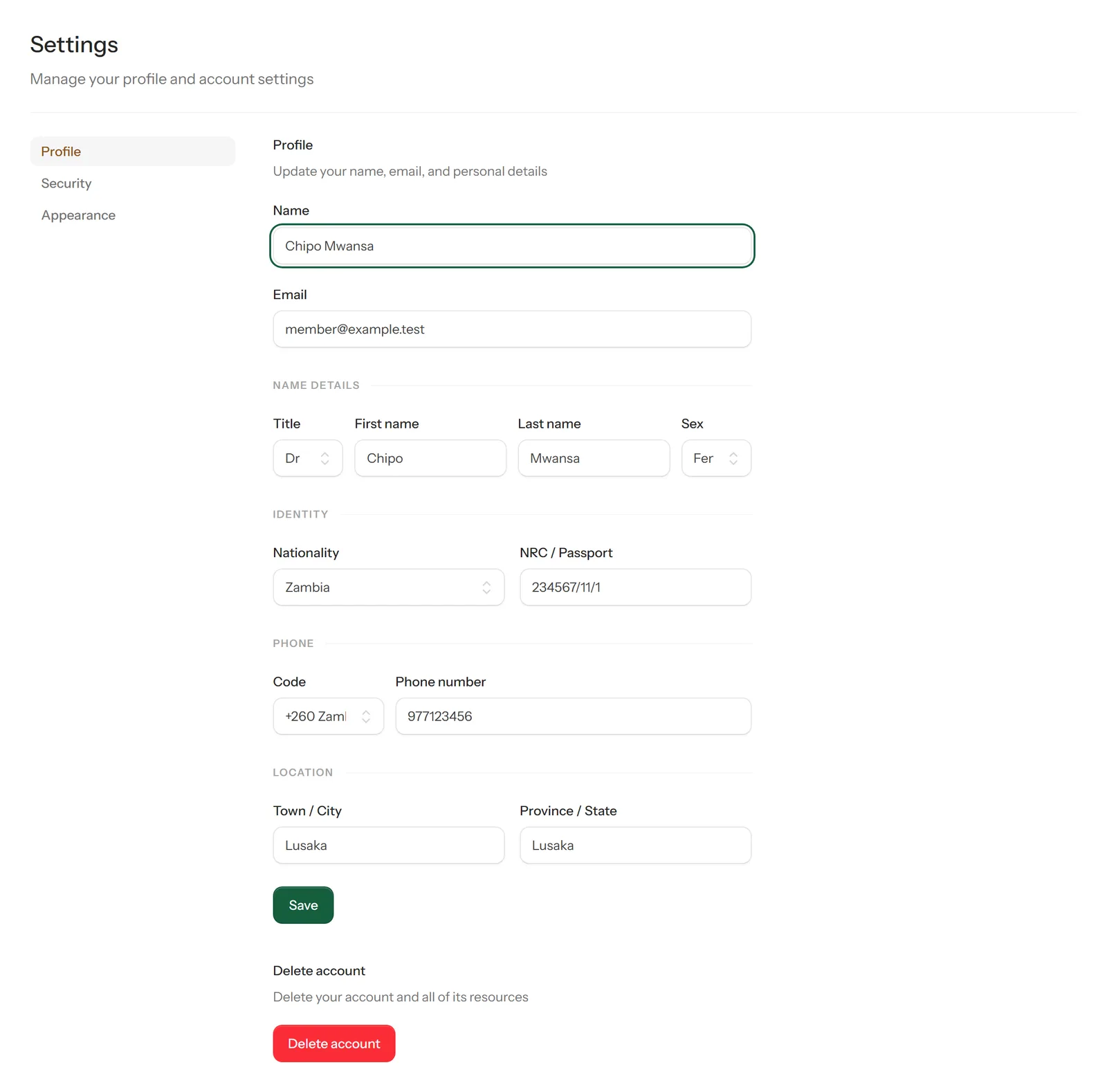
Update your profile
Profile holds your name, email address and other details. Change what you need and save.
2
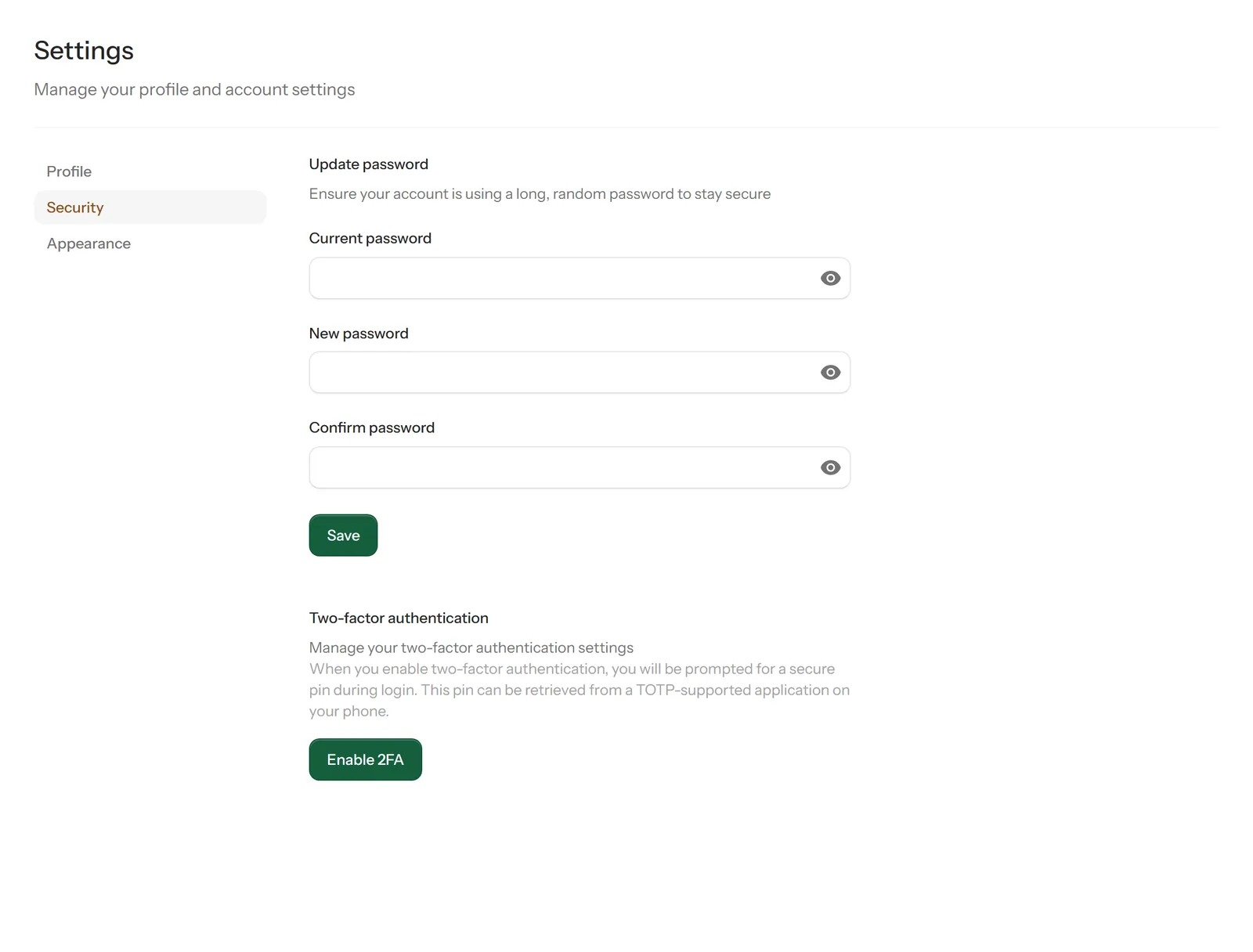
Change your password
Select Security. You may be asked for your current password first — this protects your account if you've left it signed in somewhere. Enter your current password, then your new one twice, and select Save.
3
Turn on two-factor authentication (optional)
For extra security, select Enable 2FA on the same page and scan the QR code with an authenticator app on your phone. From then on, signing in asks for the 6-digit code from the app as well as your password.
4
Choose light or dark
Under Appearance, choose Light, Dark or System to match your device.