
Your roster is your own list of people. Add them once, then register them for any event without retyping their details. Only you can see and register the people on your roster — other coordinators, even in your organisation, keep their own.
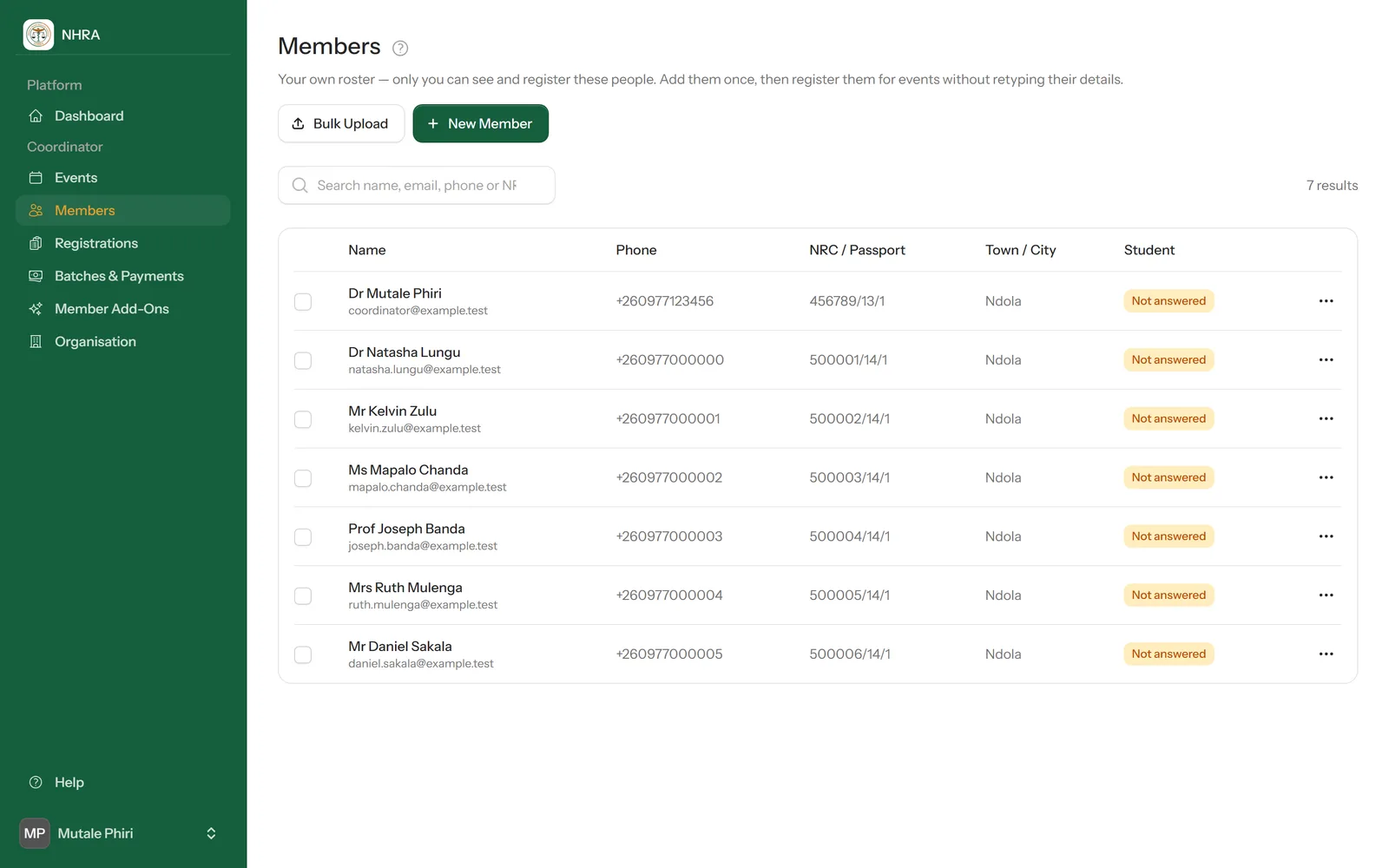
Open Members
Select Members in the sidebar. You're already on the list — every coordinator starts with themselves.
 1
2
3
1
2
3
Add one person
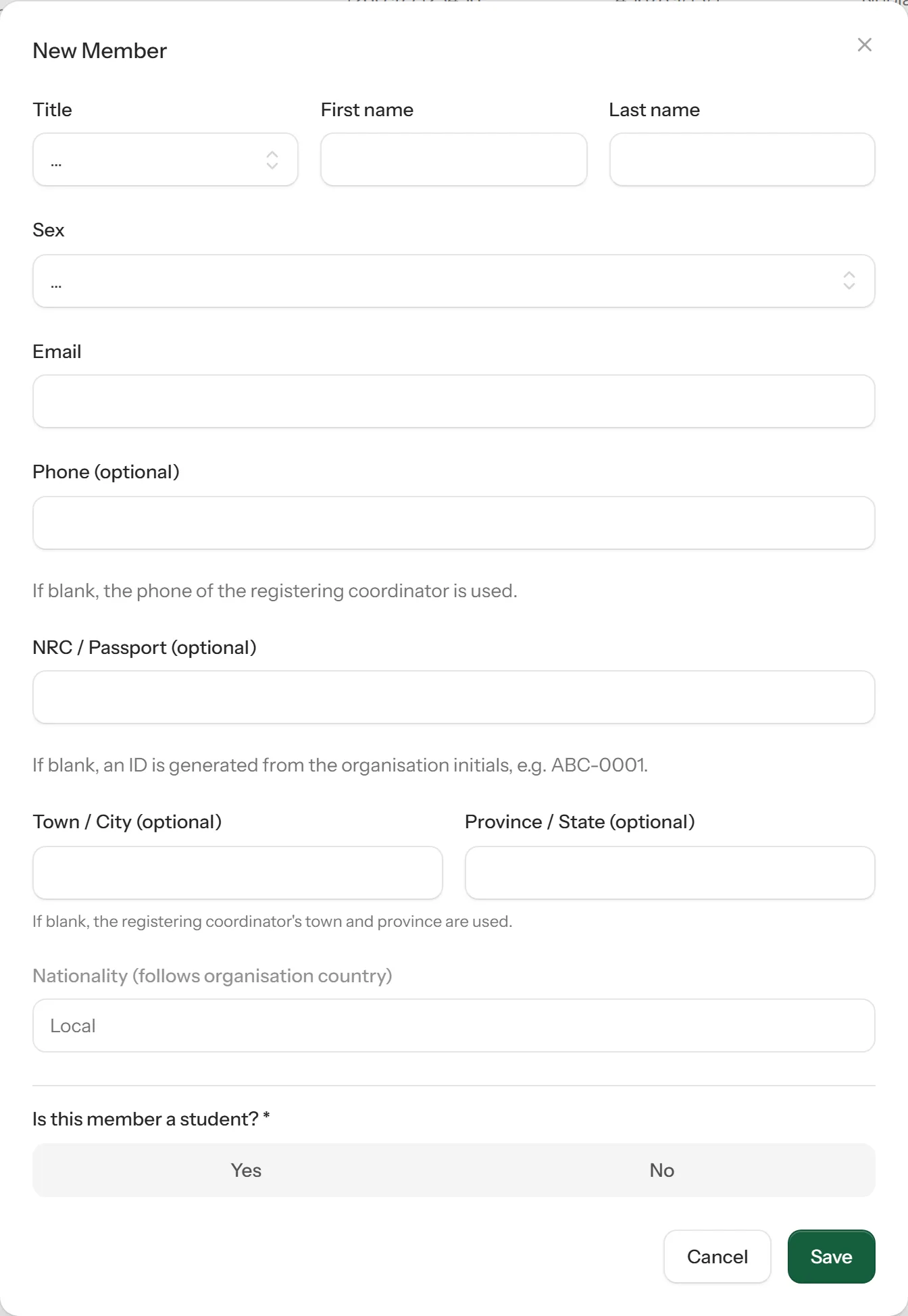
Select New Member, fill in their title, name, sex and email, and select Save.
Phone, NRC/passport and town/province are optional. Left blank, your own phone and town are used, and an ID is generated from your organisation's initials (for example ABC-0001). Nationality always follows your organisation's country.
Or add many people at once
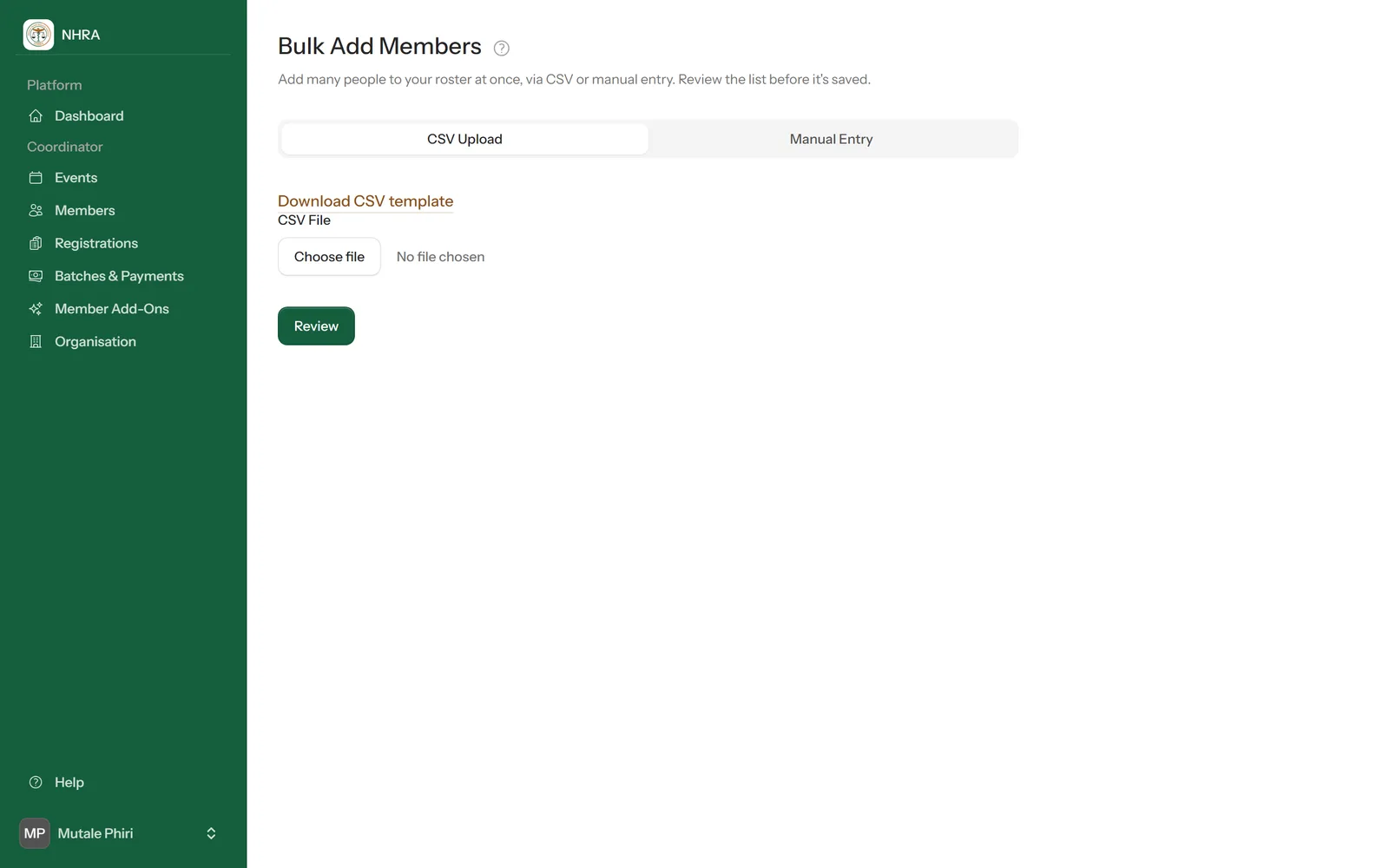
Select Bulk Upload. Then either:
- CSV Upload — select Download CSV template, fill it in with a spreadsheet program (one person per row), save it as CSV and choose it under CSV File; or
- Manual Entry — type the people into rows on the page.
Select Review to check the list. Rows with problems are marked so you can fix them. When you're happy, select Confirm & Add Members to Roster.
 1
2
3
1
2
3
Keep it up to date
Use the ⋯ menu on any row to edit or delete that person. When you're ready, tick the people to register and select Register Selected for Event — see Register members for an event.