
See all your batches
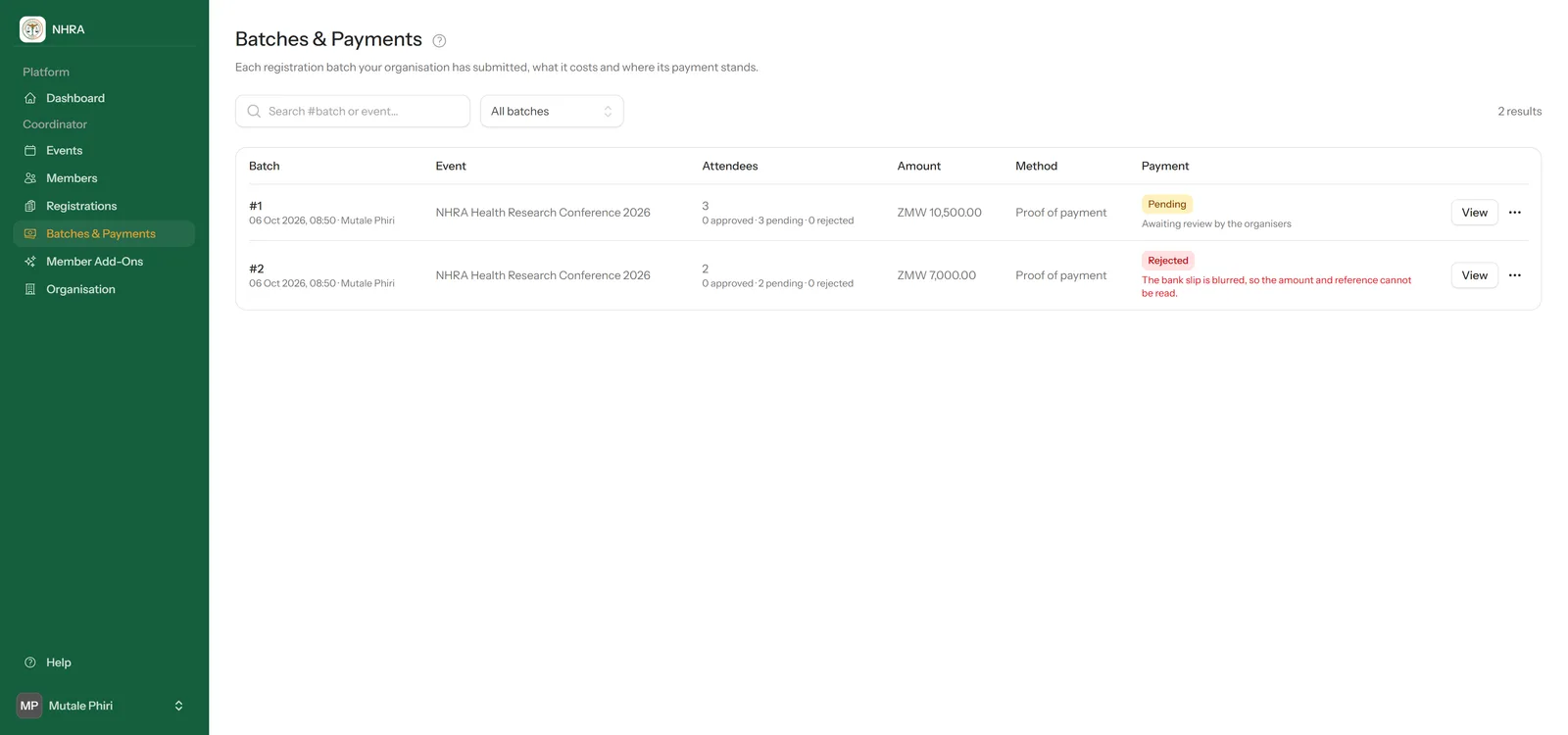
Select Batches & Payments in the sidebar. Each row is one batch, with its event, how many attendees it has, the amount and where its payment stands. Use the search box or the filter to find a batch. View opens a batch; everything else you can do with it is in the ⋯ menu at the end of its row.
 1
2
1
2
- Pending — your proof is waiting for the organisers to review it, or a mobile money prompt is waiting for approval.
- Approved — paid; everyone in the batch is registered.
- Rejected — the proof wasn't accepted. The reason is shown under the status.
Look inside a batch
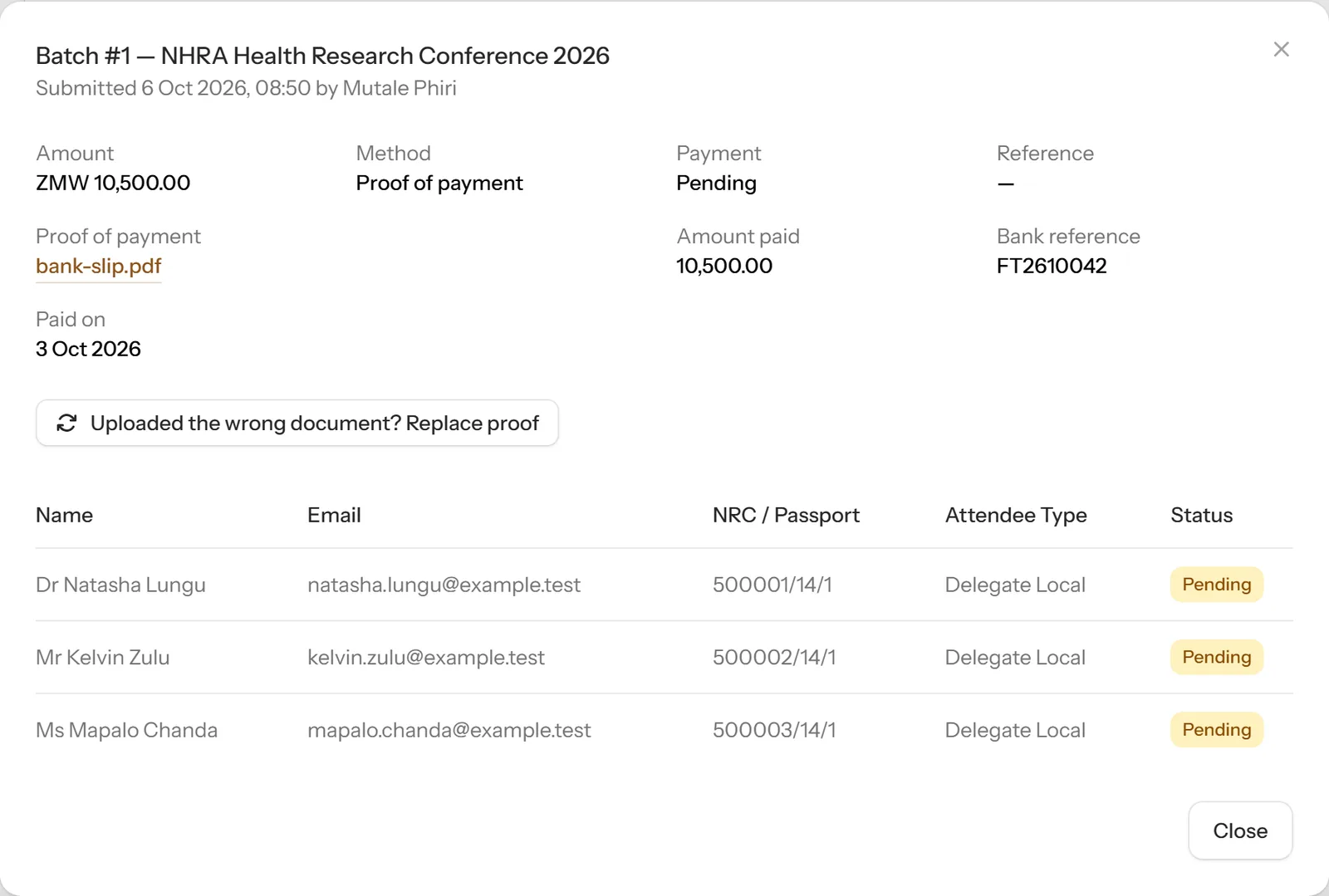
Select View to see the payment details, open the proof you uploaded, and check each attendee's status.
 1
1
Fix a rejected proof
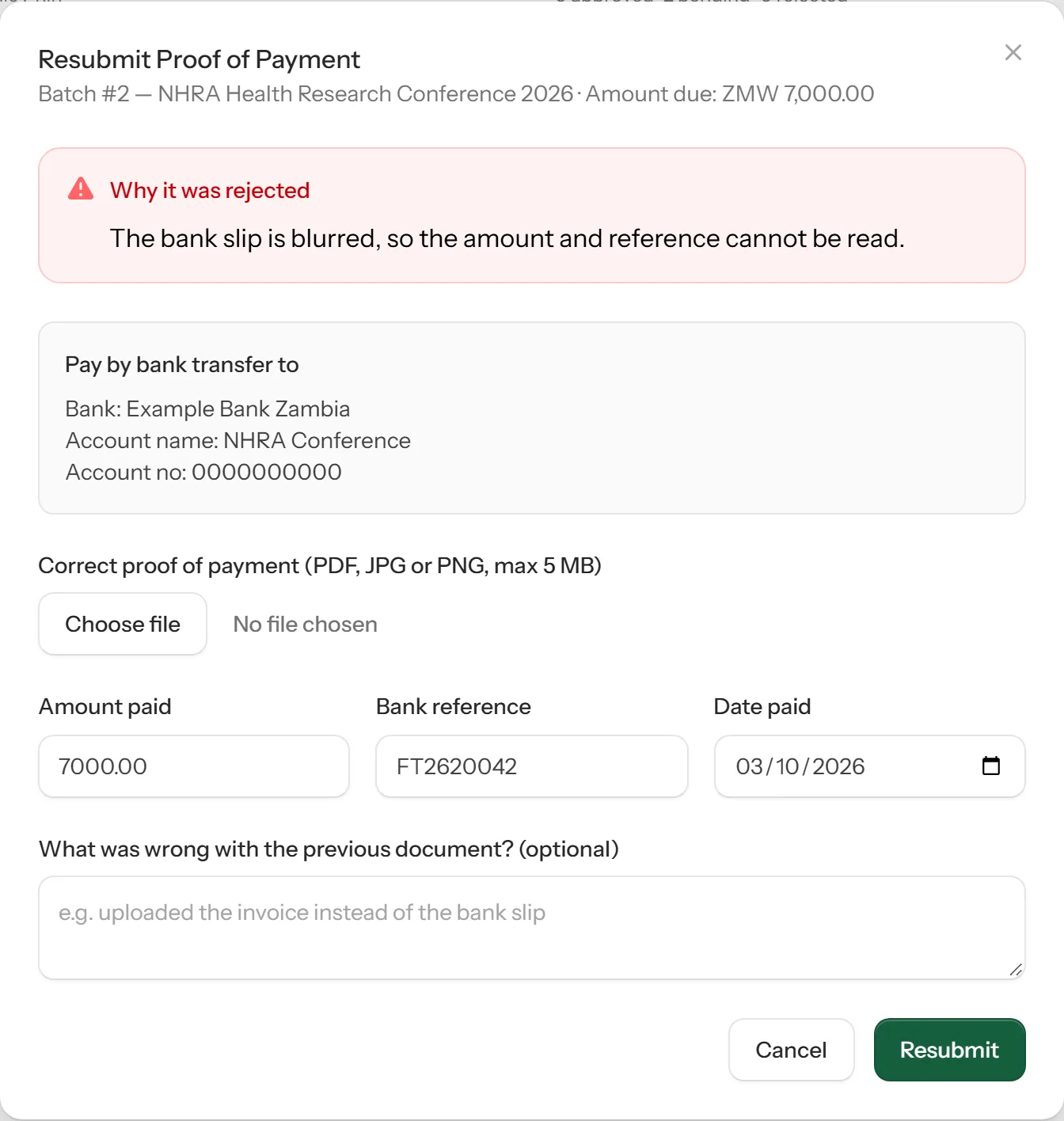
Open the batch's ⋯ menu and choose Resubmit Proof. Read why it was rejected, choose the correct file (PDF, JPG or PNG, up to 5 MB), check the amount, bank reference and date, and select Resubmit. It goes back to the organisers for review.
 1
2
3
1
2
3
Unfinished card and mobile money payments
These are in the batch's ⋯ menu too. If a card checkout wasn't completed, choose Pay Now to try again, or Discard to throw the batch away (you'll need to register those people again). For mobile money, choose Check Status after approving the prompt on your phone.